


Introduction:
To Install Windows 11 on Unsupported devices, With the release of windows 11, microsoft also launched certain PC hardware requirements for installing the windows 11 Install windows 11 on unsupported devices. The requirements for hardware is TPM 2.0, advance CPU architectures and a minimum amount of RAM. Apart from this some of PC’s hardware doesn’t meet the requirements to install the windows 11 and other way they want to check some bypass way to install. please follow the steps to install win 11 . Also we are not gurranted that for underpowered hardware to perform this type of bypass way.
Step 1: Install Rufus
- Rufus we are using for prepairing the bootable devile like USB storage pendrive. here are the steps:

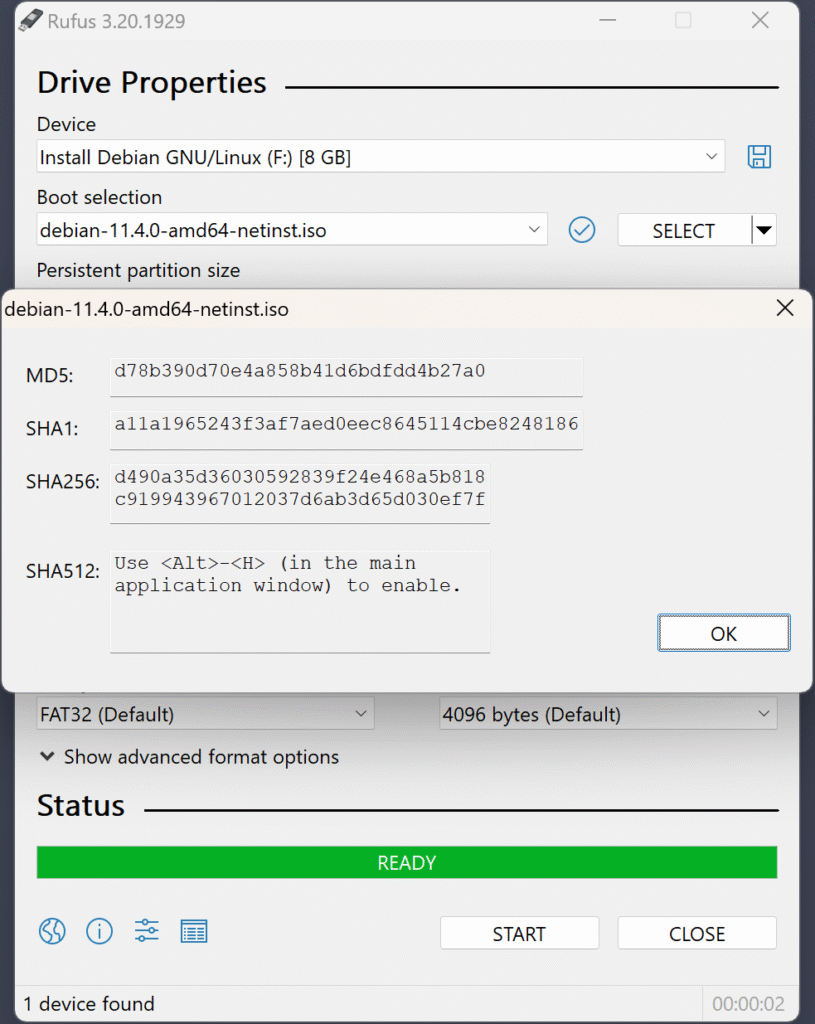
Click Here to Download The RUFUS Software
Then choose the device what you have like Pendrive and select the Iso File from boot selection,

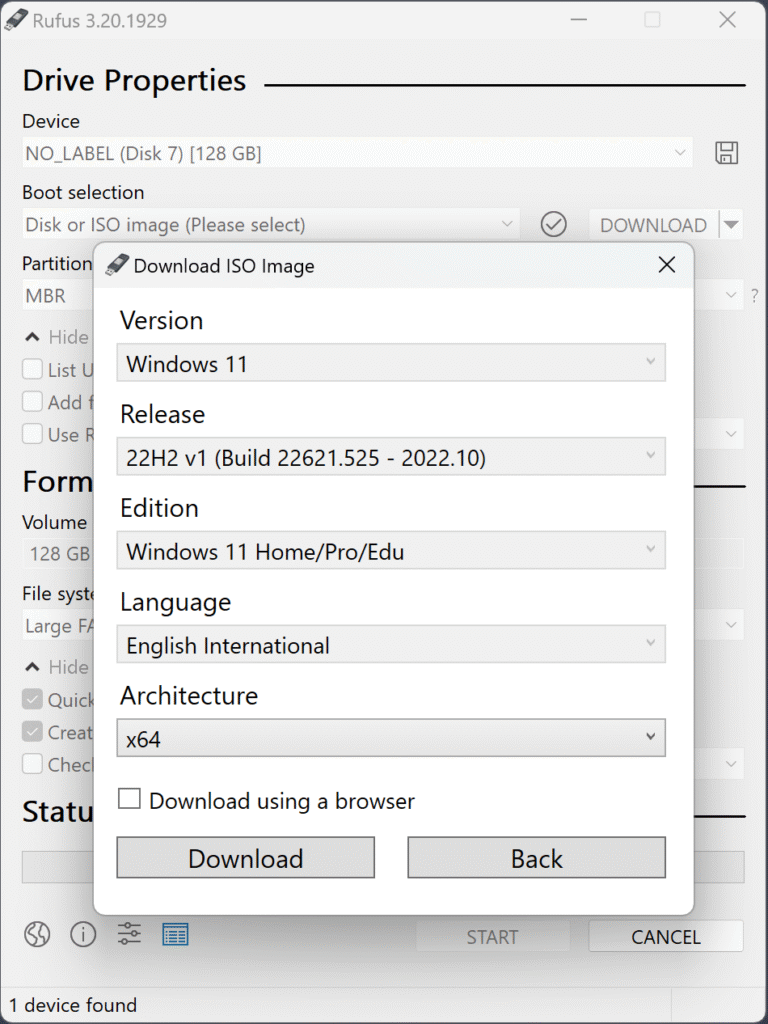
Please click download, and after finishing the download step please click ready to create bootable flash drive for install windows 11.

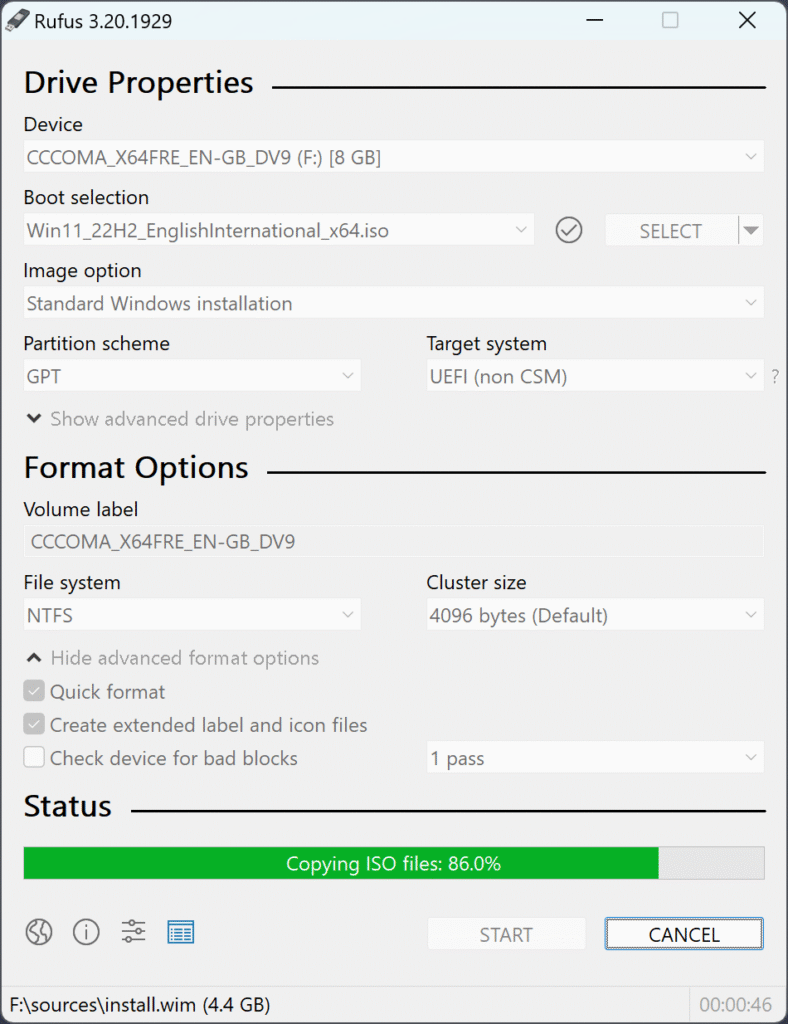
Step 2: Install Windows 11 From USB Flash Drive:
Lets Install windows 11 from that USB flash drive which one we made from rufus Software, follow step by step to install:
1. Check yours PC Compatibility Here
- Minimum 2 Ghz or more processor and compatible tp 64 bit
- RAM Memory minimum 4 Gb or more
- Storage minimum 64 Gb required
- TPM: Trusted platform Module 2.0
- Firmware: UEFI,Secure Mode Capable
2. Install Windows 11 from the USB Drive:
- First insert the bootable drive into the system or laptop you want to upgrade to windows 11.
- then you need to restart your PC and contineous press a key like esc or F12(that depends on your PC), untion you are not getting the bios page.

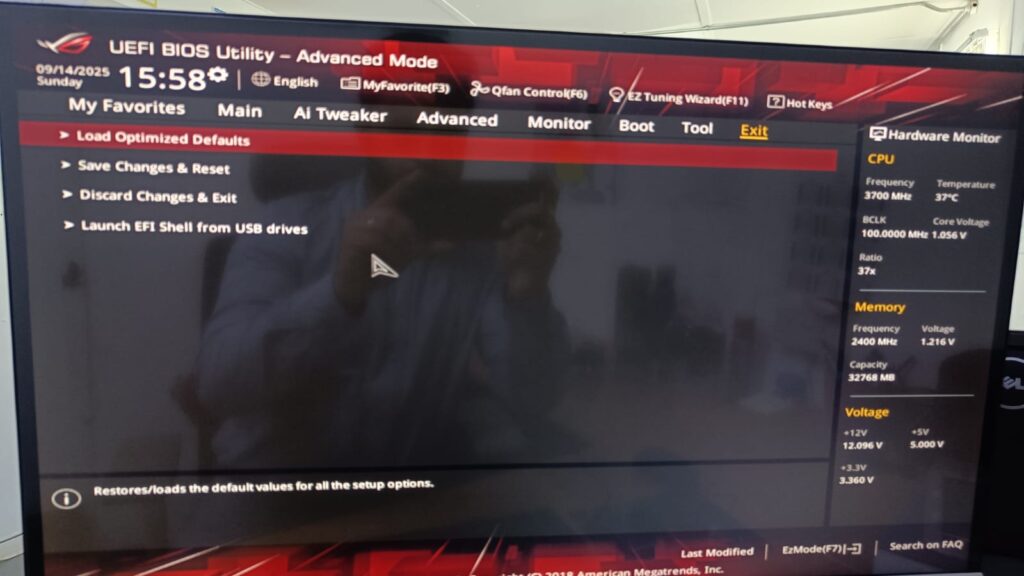
- Then please choose the boot menu primary to your USB drive, then click save and reset
- after if your system reach the minimum requirement for Install Windows 11 on Unsupported devices will redirect to the next page.
- if your system does not meet the minimum requirement you will get error like your system doesnt support the requirement.
- In that case you have to bypass the requirements like enable the TPM 2.0 and then this will redirect to the next page
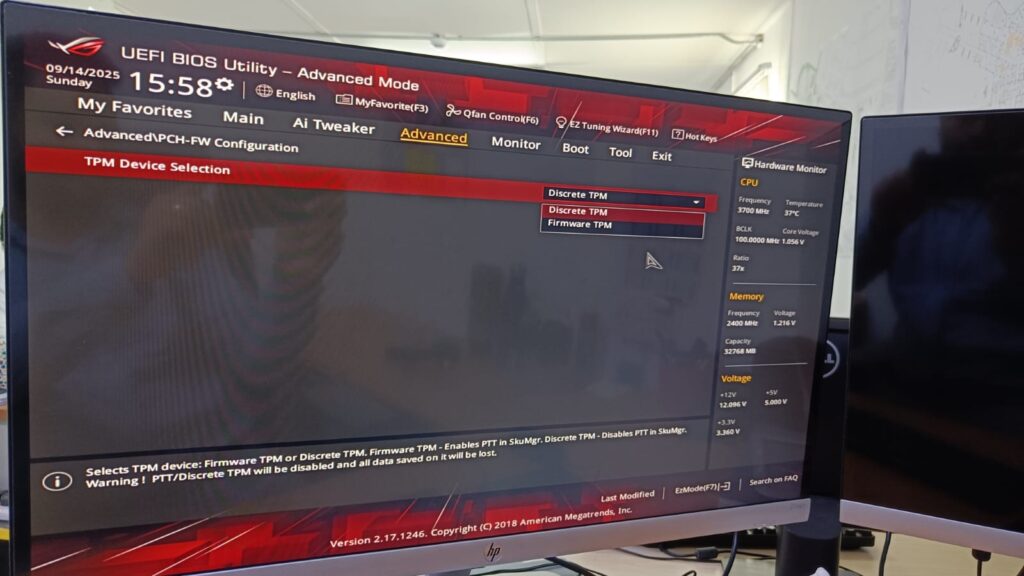
- Here is the TPM you have to enable for Windows 11 installation.
- After this once the windows screen appears choose the language and click “NEXT“.
- Click Install Now to start the installation process
- If it will prompt for Product key on that case if you have the key enter and click “NEXT” or simply click I don’t have the product key.
- Then it will redirect you to sign in page also on that page you will get “i don’t have internet option” click and next to continue.
- If you are not getting that option please follow the step below:
- Step 1: open command prompt by pressing (Windows button on your keyboard+F10)
- Step 2: then type ncpa.cpl to open the network control panel and then disable your ethernet and wifi

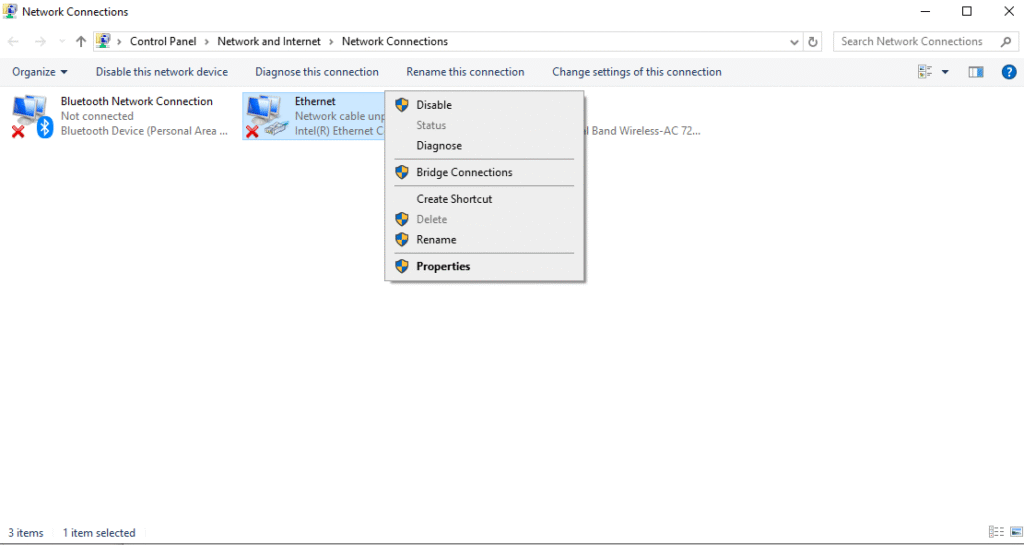
- Then again come to command promt and type oobebypass\nro command and press enter.
- After this you will get that I don’t have internet Option then click and continue to next.
- Accept the license and terms.
- Select “Custom: Install Windows only (advanced)” for a clean installation.
- Then choose the partition and click ‘NEXT‘.
- After that follow the screen instructions to complete the installation process.
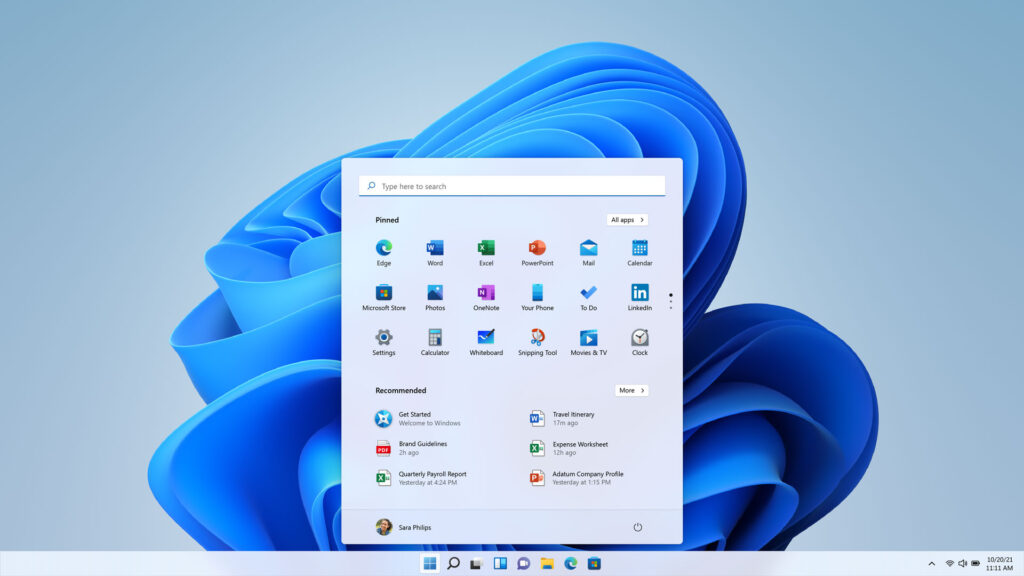
To Install Windows 11 on Unsupported devices, Troubleshooting the issues:
- Ensure that the bootable Pendrive is Perfectly installed with Rufus software.
- Follow the Screen Instructions Carefully.
- If you will get the unsupported system please check the requirements perfectly and then start the installation again.
Conclusion:
Using the USB flash drive for installing the Windows 11 for your PC is gives you the more control over the upgrade process, and allows you to perform a clean and hassle free instalation. Install Windows 11 on Unsupported device please follow these steps.
Note: Windows 10 is going to stop the support from October 14,2025, on that you can’t upgrade your windows 10 security updates. so be prepare for windows 11 and try to familiar with this windows 11 and then you install your PC to windows 11 for a better experience.
For download the IOS File for windows 11 click here
End:-